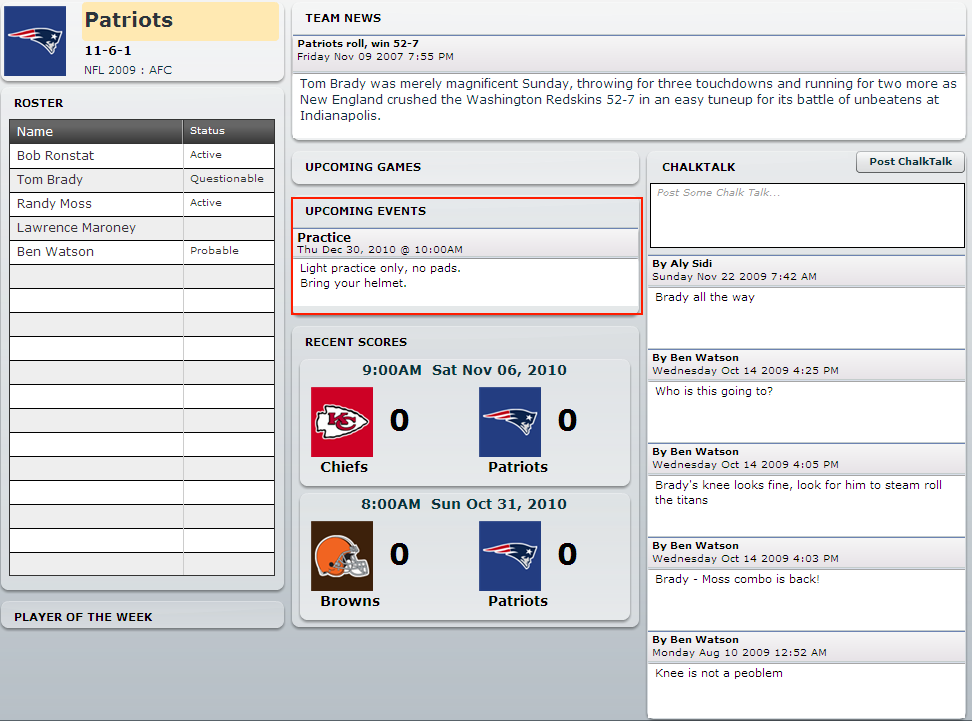
Team Admins can now add specific events for a team.
Specifically, you can add Practices, Exhibition Games, or general Team Meetings.
1. Login
2. Goto yourTeam page
3. Click Team Admin
4. Click Team Events
You should now see the screen below.
*A few things to note*
1. You should set your event date in the future, otherwise it won't show up
2. It will show only the most recent 3 events on the team page
3. You have the option of making the event public or private. By default all events are private which means you need to log into your team page to view them, If you don't want people to login, then make them public, but that means anyone who browses your team page can see them.
You can see the team events show up on your team page. Remember it will only show events that have a date greater than today and it will show the most recent 3 upcoming events.
We will be adding email notifications for team members shortly as a new feature.
The easiest way to add players to your team, is to use the Bulk Invite Players option. To get to this screen :
1. Login
2. Goto your team page
3. Click Team Admin
4. Click Bulk Invite Players
It allows you to enter a bunch of emails separated by a comma, and select the role you want for those team members. It will then mass email the players as well as add them to your team.
The players will then have to update their information, so their first name doesn't stay as their email address.
In the example below, we are creating 2 players as a :
COACH : So they will show up under the Coach tab with their contact information
TEAM ADMIN : So they can administer the team page and send out emails, update news, etc
TEAM STATS KEEPER : So they can enter scores online and update player statistics
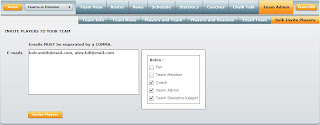 NOTE #1 : Don't worry if the email already exists in the system, it will simply add that player to the team and not create a new account.
NOTE #2 : If you assign the TEAM MEMBER role, you will still have to drag and drop those players to your current teams roster, so they will show up on the Team View tab.
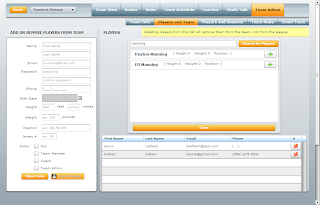 You can add players to your team under the Team Admin tab, then clicking on the "Players and Team" tab.
You can either create NEW players that will automatically be added to your team. A confirmation email will be sent to the newly created player so they can login to the site.
OR you can search the entire league for players and ASK them to join your team.
Why would you want to do that? Well, its a good way to search for free agents, or just add your friends to your team so they can participate in ChalkTalk on your team page.
An email will be sent to the player asking them if they wish to join your team. If they accept, they will show up in the grid in the above screen shot.
 Where ever your see this question mark on the site, you can click it for some context specific help...So if you are on the League News Page, and you want to know how to add some League News, just click the green question mark and poof, you get a nice little yellow box telling you how to do it!
What a novel concept....help on the screen you actually need it on.

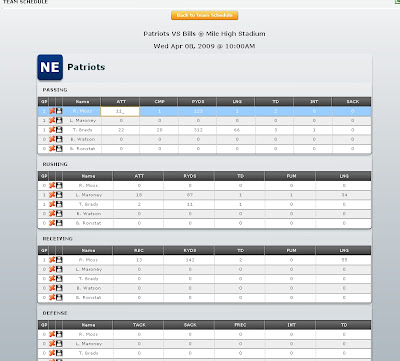 League Administrators can now have a new role to assign to members : TEAM STATISTICS KEEPER. Team Statistics Keepers can input player statistics for each game.
This alleviates the need for League Administrators to enter stats for the whole league, so now they can delegate these tasks to 1 or more people on a team. The Team Statistics Keeper can be anyone, they do not have to be a players, so its perfect for Coaches, Fans, and Parents.
Here's how to enter the stats for your team:
1. Login
2. Goto you team page
3. Click on the Team Schedule tab
4. Click on the "Enter Stats" column for the game you want.
5. You can only enter Player Statistics for your team.
You will note in the picture above there is a "Save" icon and a "Delete" icon next to each persons name. This feature allows you to quickly update player stats for players who may not have any stats but still play in a game. It also gives you an overall view of the team stats.