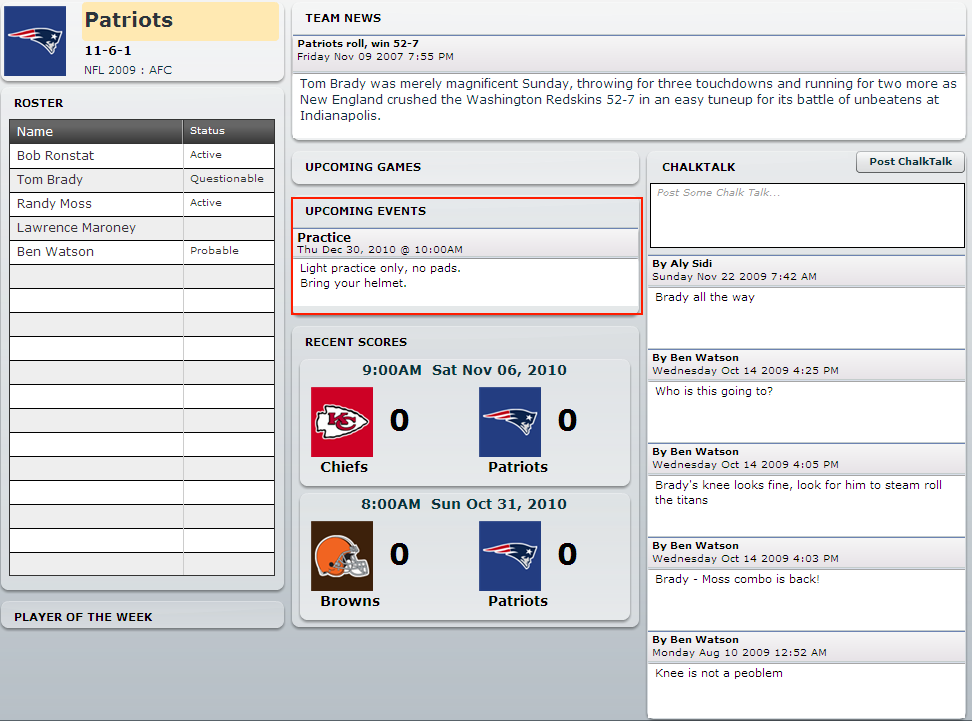
Now that you have added your Team Events you want to make sure people attend them.
Similar to the Game Reminders and Game Attendance Reminders you can now have your players on your roster respond to team events so they don't miss them.
1. Login
2. Goto your team page
3. Click on Team Admin
4. Under Team Info you should see the screen shot below
Team Event Reminder : Reminders will be emailed within a 24 hours of the event
Team Event Attendance Reminder : Attendance Reminders will be emailed within 48 hours of the event
Here is a sample of a team event attendance reminder below :
To check the event attendance, once you are logged into your team, click the Event Attendance link and it will show you who has responded to the event.
PlayerStreak.com helps sports leagues, teams and players collaborate & communicate online. Everyone has a role to play, whether you are a fan, parent, team member, coach, or league administrator. PlayerStreak.com wants to build sports communities online that encourage participation by combining day to day sports management duties with a social network that keeps everyone informed.
Tuesday, April 12, 2011
Tuesday, December 21, 2010
Team Events (Practices, Meetings, Exhibition Games)
Team Admins can now add specific events for a team.
Specifically, you can add Practices, Exhibition Games, or general Team Meetings.
1. Login
2. Goto yourTeam page
3. Click Team Admin
4. Click Team Events
You should now see the screen below.
*A few things to note*
1. You should set your event date in the future, otherwise it won't show up
2. It will show only the most recent 3 events on the team page
3. You have the option of making the event public or private. By default all events are private which means you need to log into your team page to view them, If you don't want people to login, then make them public, but that means anyone who browses your team page can see them.
You can see the team events show up on your team page. Remember it will only show events that have a date greater than today and it will show the most recent 3 upcoming events.
We will be adding email notifications for team members shortly as a new feature.
Specifically, you can add Practices, Exhibition Games, or general Team Meetings.
1. Login
2. Goto yourTeam page
3. Click Team Admin
4. Click Team Events
You should now see the screen below.
*A few things to note*
1. You should set your event date in the future, otherwise it won't show up
2. It will show only the most recent 3 events on the team page
3. You have the option of making the event public or private. By default all events are private which means you need to log into your team page to view them, If you don't want people to login, then make them public, but that means anyone who browses your team page can see them.
You can see the team events show up on your team page. Remember it will only show events that have a date greater than today and it will show the most recent 3 upcoming events.
We will be adding email notifications for team members shortly as a new feature.
Friday, February 19, 2010
Who's IN ? Who's OUT ?
With many amateur sports leagues, there is usually one or two people acting as a coach or the responsible person for the team. One of the most time consuming duties is figuring out who is going to be at the game to see whether it should be re-scheduled or cancelled, or knowing that you have to get spares to fill in.
Now, how do you track that people are coming to the game before the actual game starts? Welcome to Game Attendance Reminders
To get to the Game Attendance Reminders screen below
1. Login
2. Goto your Team page
3. Click on "Team Admin"
These are broken into 2 categories below :
Game Reminder : These are emails sent out 24 hrs before game time to make sure that you have not forgotten about the game. These are also for people, who never visit the site to check the schedule.
Game Attendance Reminder : These are emails sent out 48 hrs in advance and look like the image below
If you click the Count me IN / OUT link it will update your status on the web site automatically.
To see who has responded to the game attendance reminders, when you log in to your team site you will see a new hyperlink under Upcoming Games, like the image below.
And click the Game Attendance link will take you to the full list of players who are IN or OUT.
NOTE: You can also update your status on the screen below anytime.
In this example, you can see 2 players are IN and 2 players are out, and 1 has not responded yet.
Hopefully, this feature will make team management that much easier.
Now, how do you track that people are coming to the game before the actual game starts? Welcome to Game Attendance Reminders
To get to the Game Attendance Reminders screen below
1. Login
2. Goto your Team page
3. Click on "Team Admin"
Game Reminder : These are emails sent out 24 hrs before game time to make sure that you have not forgotten about the game. These are also for people, who never visit the site to check the schedule.
Game Attendance Reminder : These are emails sent out 48 hrs in advance and look like the image below
To see who has responded to the game attendance reminders, when you log in to your team site you will see a new hyperlink under Upcoming Games, like the image below.
NOTE: You can also update your status on the screen below anytime.
Hopefully, this feature will make team management that much easier.
Labels:
email reminder,
game attendance,
game reminder
Monday, December 7, 2009
Manage Team Roles and Permissions
If you need to change a persons role, to say a Team Admin, or add them as a Team Statistics Keeper, then you can do so by going to :
Now the next time the person logs in, they will have their new permissions set up.
Check the screen shot below for more details

- Goto your Team Page
- Then click on "Team Admin"
- Then click on "Players and Team"
- Then select the person's name
- Then click the checkbox for TEAM STATISTICS KEEPER and TEAM ADMIN
- Then click Save.
Now the next time the person logs in, they will have their new permissions set up.
Check the screen shot below for more details

Wednesday, November 11, 2009
Email Your League
Sometimes you have the need to email certain members of your league to notify them about a particular event or reminder. We have added an email league option under :
League Administration > Players > Email League
You can now target emails to all Fans, Coaches, Team Admins, Team Statistic Keepers and Team Members or any combination.
Check the screenshot below to see it in action.

League Administration > Players > Email League
You can now target emails to all Fans, Coaches, Team Admins, Team Statistic Keepers and Team Members or any combination.
Check the screenshot below to see it in action.

Filter Your Player Lists and Copy to Excel
As your league grows with more and more players (fans, coaches, team admin, stats keepers), you need an easy way to find them. We have recently added a filter option to sort by roles. Have a look at the screenshot below.

After you have filtered your list you can click the "Copy to Clipboard" icon, also in the screenshot above, then open Micrsoft Excel or Word or any other program and paste the filtered list into that program.

After you have filtered your list you can click the "Copy to Clipboard" icon, also in the screenshot above, then open Micrsoft Excel or Word or any other program and paste the filtered list into that program.
Monday, October 26, 2009
Thursday, October 15, 2009
Add / Minus Points in Standings Calculation
The standings are first sorted by the Points column. These points are dynamically calculated based on your League Scoring Options.
But sometimes you need to modify the Points because you want to either add or subtract points from a team in a given season.
This could be because of penalties against the team, or rewarding the team for their actions.
Now you can do this when you enter a score in for a game.
Notice the +/- Misc Points hyper link. Clicking on the link will take you to the next screenshot.
This screen lists all the miscellaneous points you have given to a team in the current season/division. It is advisable to provide a comment so you do not forget what why you gave the points.
Now when you go back to the Standings page, there should be an extra MP column (Miscellaneous Points). These points will be added to the total Points and the Standings will be sorted accordingly.
But sometimes you need to modify the Points because you want to either add or subtract points from a team in a given season.
This could be because of penalties against the team, or rewarding the team for their actions.
Now you can do this when you enter a score in for a game.
Notice the +/- Misc Points hyper link. Clicking on the link will take you to the next screenshot.
This screen lists all the miscellaneous points you have given to a team in the current season/division. It is advisable to provide a comment so you do not forget what why you gave the points.Now when you go back to the Standings page, there should be an extra MP column (Miscellaneous Points). These points will be added to the total Points and the Standings will be sorted accordingly.
Tuesday, September 8, 2009
Tweaking Your Schedules
Ok, so you have just generated a bunch of schedules and you need to tweak it a bit. Maybe some games need to be moved to another day.
Or maybe you need to move a bunch of games to a new location. Or maybe you need to reschedule a block of games that could not be scheduled in the first place.
There are few options at your disposable to accomplish this.

Whether you are in the Generate screen or the Manage Schedules screen (see above for a screenshot)

You will notice that you can "right click" on the grid, whether you are on a spefici day, or time slot, just right click and you will be presented with a menu.
Move Selected Games to Another Day
This option allows you to bulk move games to another day, while preserving the time slots
Change Selected Game Locations
This option allows you to bulk move games to another location.
Reschedule Games
This option will ask you to pick a new date or the same date, and a new location. If there is a conflict, it will not schedule the games. You can only use this option when you "Generate" games, because after you import them, it will only import games that could be scheduled.
Or maybe you need to move a bunch of games to a new location. Or maybe you need to reschedule a block of games that could not be scheduled in the first place.
There are few options at your disposable to accomplish this.

Whether you are in the Generate screen or the Manage Schedules screen (see above for a screenshot)

You will notice that you can "right click" on the grid, whether you are on a spefici day, or time slot, just right click and you will be presented with a menu.
Move Selected Games to Another Day
This option allows you to bulk move games to another day, while preserving the time slots
Change Selected Game Locations
This option allows you to bulk move games to another location.
Reschedule Games
This option will ask you to pick a new date or the same date, and a new location. If there is a conflict, it will not schedule the games. You can only use this option when you "Generate" games, because after you import them, it will only import games that could be scheduled.
Tuesday, August 11, 2009
Balanced Round Robin Schedule Generator with Location Conflict Manager
Balanced Round Robin Schedule Generator
with Location Conflict Manager
A round-robin tournament is a type of group tournament in which each participant plays every other participant. This is sometimes called a single round robin schedule. If each participant meets twice it is called a double round robin.
A balanced schedule means that the number of home and away games for a team will be as balanced as possible and the number of runs of consecutive home or away games will be as low as possible. No one participant will have an unfair advantage due to repeated placement at a specific game location.
Each location has its own calendar, and when a time slot is booked for that location it should used when generating schedules. A balanced round robin schedule should take into account the location component, and ensure that the location is not booked at that time. If it is booked, the schedule generator should be aware of this and try to re-book the game in the next available time slot, or move it to another location.
PlayerStreak seamlessly combines the single round robin strategy with team balancing and a location-aware conflict system to generate schedules.
Wizard Walkthrough
Schedule generation is not an easy task and usually requires multiple attempts to obtain a satisfactory schedule. The PlayerStreak approach uses a set of wizard screens to guide the user through the process, which serves to simplify the overall workflow.
Step 1 : Pick Your Teams
In the first step, you will need to select the teams that will be part of the schedule. You can choose to select all teams in a given season and division, or you can select the teams manually. You must have at least 4 teams to continue to the next screen.
Step 2 : Select Your Date and Time Slots
The next step is to select which days of the week your games will be played on. Also, you must select the start and end dates for your schedule. Don’t worry about matching up the days of the week with your start date, as this is calculated automatically. Remember, you can always re-generate your schedule before importing it. The next step is to select your start and end times for your locations. These are the available times slots that the games will be scheduled within. The last item to define is the game length. The generator is also smart enough to calculate if your game lengths exceed the available start and end times for your locations.
Step 3 : Select Your Locations
The next step is to select which locations your games will be played at.
Manually Select Locations
This option will ensure that all games for a given round of the schedule will all be played at the same location, barring any conflicts. Each round will select a new location. The order in which you select the locations will determine the order in which they are cycled through.
Use Each Team’s Home Location
This format is used when each team has their own home location. Each game in a given round will be played at the team’s home location. To select a team’s home location, click on the Location Name column next to the team name and a drop down box should appear with a complete list of locations. It is okay if more than one team shares a home location. The schedule generator will take this into account when determining conflicts at a given location and bump the timeslot accordingly.
Step 4 : Generate Your Schedule
In the last step, you are now ready to create your schedule. When the number of teams is odd, there will be one team who has a bye in each round. This game is not shown as it does not need to be scheduled. Each time the Create Schedule button is pressed a new schedule will be generated. To randomize the teams, click the Randomize Schedule checkbox first. This feature is useful if you create more than one schedule for the same group of teams or if the teams share locations, since the teams will come in a different order each time. A status message will also appear above the grid which will show you how many games could be scheduled with a corresponding percentage as well.
Pay special attention to the comment column. When a game has been successfully scheduled, you will see a green comment with the corresponding round number.
For example, a round 1 message will display as : ok. round 1
There are also other messages displayed in red.
- Existing Calendar Entry
- On a given day at a given location, there may be an existing appointment or game booked, and you will see this message, whether or not your entry conflicts. If your entry does conflict, the scheduled game will be automatically re-booked.
- No more times slots available for location
- This message means that you should try increasing your available start and end date times for locations. For example, if you have 4 games per round being played and each game is 1 hour long and your location is only available from 8:00 am to 11:00 am, you will see this message for the fourth game, which should really be scheduled for 11:00 am to 12:00 pm. You can go back and do this in Step 2 of the wizard.
- No available locations. Try increasing your end game date.
- This message means that the generator ran out of available dates, probably because your end game date is too short.
Friday, June 26, 2009
Submit Scores Online
Keeping track of scores for 1 league admin can be tedious. Even though there is a League Score Keeper the score keeper still has to enter in the scores for each game.
We have seen score keeping done in many ways : by email, by phone, and by text messaging, but these methods still require the score keeper to enter those scores on the website.
Well, we tried to remove that extra level data entry and delegate to the Team Statistics Keeper. Now, these team scorekeepers can enter the score for the game (usually the wining or losing team will report the scores), but this does not make the score final and the standings, points for, points against, etc will not be calculated. Also, if anyone looks at the score for the game, it will still show 0 - 0.
To get to this screen goto :
1. Login
2. Goto your team page
3. Click Schedule
4. In the Schedule grid click Submit Score
See below for a screen shot.

Now that the score for that game has been entered, when the League Score Keeper logs in, they will see a screen shot like the one below. Notice the orange
background for the last row?
You will notice that the scores are filled in, so all the score keeper has to do is click the save button and the standings, points, and scores are automatically updated. And as an added benefit, now no team stats keeper can submit a score again. See in the below screenshot in the "Submit Score" column where there are blanks? That means the game already has had the score approved by the league score keeper.

We have seen score keeping done in many ways : by email, by phone, and by text messaging, but these methods still require the score keeper to enter those scores on the website.
Well, we tried to remove that extra level data entry and delegate to the Team Statistics Keeper. Now, these team scorekeepers can enter the score for the game (usually the wining or losing team will report the scores), but this does not make the score final and the standings, points for, points against, etc will not be calculated. Also, if anyone looks at the score for the game, it will still show 0 - 0.
To get to this screen goto :
1. Login
2. Goto your team page
3. Click Schedule
4. In the Schedule grid click Submit Score
See below for a screen shot.

Now that the score for that game has been entered, when the League Score Keeper logs in, they will see a screen shot like the one below. Notice the orange
background for the last row?
You will notice that the scores are filled in, so all the score keeper has to do is click the save button and the standings, points, and scores are automatically updated. And as an added benefit, now no team stats keeper can submit a score again. See in the below screenshot in the "Submit Score" column where there are blanks? That means the game already has had the score approved by the league score keeper.
Tuesday, April 7, 2009
Basketball Statistics
We have just added basketball statistics and it automatically calculates points per game for free throws, field goals and 3 pointers! Sign up for your league here
Monday, February 23, 2009
Tournaments, Brackets and Ladder Matches
We have added Tournaments / Ladder Matches / Tournament Brackets to the main site. Any team in your league may participate in a tournament regardless if they are a part of a Season or Division. There are 3 types tournaments : 4 , 8 and 16 team. We will be adding more teams in the future.

If you would like to create a 12 team ladder match of playoff tournament for example, select the 16 team tournament type and the system will be smart enough to filter out the un-used teams.
To Create a Tournament
1. Goto "League Administration" after logging in
2. Click the "Tournament" tab
3. Click the "new" button
4. Enter a Tournament Name, Date, Type and Location
5. Click Save
Adding Teams to the Tournament
1. Drag a team from the team list and drop it on a blank tournament spot. You can only drop teams on the first column of the tournament.
Modify Scores in the Tournament
1. Once you have added teams to the first column, all you have to do is put your cursor on the score (should be 0 initially) and update the score.
There is no need to click the save button again as the tournament auto updates when you Add a Team or Modify a Score.

If you would like to create a 12 team ladder match of playoff tournament for example, select the 16 team tournament type and the system will be smart enough to filter out the un-used teams.
To Create a Tournament
1. Goto "League Administration" after logging in
2. Click the "Tournament" tab
3. Click the "new" button
4. Enter a Tournament Name, Date, Type and Location
5. Click Save
Adding Teams to the Tournament
1. Drag a team from the team list and drop it on a blank tournament spot. You can only drop teams on the first column of the tournament.
Modify Scores in the Tournament
1. Once you have added teams to the first column, all you have to do is put your cursor on the score (should be 0 initially) and update the score.
There is no need to click the save button again as the tournament auto updates when you Add a Team or Modify a Score.
Sunday, February 8, 2009
Standings : Over Time Games and Forfeits
There is now a flexible Scoring Option system when calculating Standing Points. Some sports may want 2 points per win, or 10 points per win. You can now customize this by navigating to : League Administration > General > League Options
You can also control how many points a team gets for forfeiting a game and how many points they get for an overtime win or loss.

Also we have added a couple new Standings Columns : Over Time Win (OTW), Over Time Loss (OTL) and Forfeits.

When you are in the score keeping screen, just check the Over Time Game or Forfeit check box below.

You can also control how many points a team gets for forfeiting a game and how many points they get for an overtime win or loss.
Also we have added a couple new Standings Columns : Over Time Win (OTW), Over Time Loss (OTL) and Forfeits.
When you are in the score keeping screen, just check the Over Time Game or Forfeit check box below.
Labels:
league admin,
league options,
score keeping,
scores,
scoring
Wednesday, December 3, 2008
Default Start and End Minutes in Schedulizer
There is now an "OPTIONS" button in the Schedulizer screen which control your scheduling options. A recent addition allows you to pad the start and end minutes when adding a game to the calendar. By default the start and end minutes are on the hour (ex: 5:00 ) and the end minutes are on the half hour (ex: 5:30). you now have the option of padding the start and end times, by 5, 10, 15, 20 or 25 minutes.For example, if your games start at 2:15 and end at 3:45, then choose the 15 minutes from the drop list and try adding a new game.
Your settings will be saved per league, so if you have multiple leagues, be sure to check your scheduling options.
Look out for more options to come in the near future.
Edit Team Information from League Admin Screen
Wednesday, May 28, 2008
Score Keeping Just Got Easier
There is now the ability to add "League Score Keepers" role.
You can enable this option by going to :
1. League Administration
2. Click the Players tab
3. Click on a person in the grid
4. On the bottom left hand side there will be a checkbox for League Score Keeper
5. Tick the checkbox and Save
(See screenshot below)
So now that you have assign one or more person to be a League Score Keeper, how do they enter scores?
Easy. When they login, they will now see a new link on the left hand side bar, called "Score Keeping". When you click on this link it will look like the screenshot below.
You can see that there is a grid and a calendar. The grid is used to enter scores and the calendar is used to navigate the months, week, or day you wish to enter scores for. The grid will automatically show the games that correspond to whatever timeframe view the calendar is in.
To update a score, simply enter the scores in the grid and then click the save icon in the right most column of the grid.
You should see the calendar refresh for the game you updated the score for.
Oh and League Admins, The Schedulizer has this built in. Just look for the "Enter Scores" button and the functionality should be same above.
You can enable this option by going to :
1. League Administration
2. Click the Players tab
3. Click on a person in the grid
4. On the bottom left hand side there will be a checkbox for League Score Keeper
5. Tick the checkbox and Save
(See screenshot below)
So now that you have assign one or more person to be a League Score Keeper, how do they enter scores?
Easy. When they login, they will now see a new link on the left hand side bar, called "Score Keeping". When you click on this link it will look like the screenshot below.
You can see that there is a grid and a calendar. The grid is used to enter scores and the calendar is used to navigate the months, week, or day you wish to enter scores for. The grid will automatically show the games that correspond to whatever timeframe view the calendar is in.
To update a score, simply enter the scores in the grid and then click the save icon in the right most column of the grid.
You should see the calendar refresh for the game you updated the score for.
Oh and League Admins, The Schedulizer has this built in. Just look for the "Enter Scores" button and the functionality should be same above.
Friday, May 16, 2008
Bulk Invite Players to Your Team
The easiest way to add players to your team, is to use the Bulk Invite Players option. To get to this screen :
1. Login
2. Goto your team page
3. Click Team Admin
4. Click Bulk Invite Players
It allows you to enter a bunch of emails separated by a comma, and select the role you want for those team members. It will then mass email the players as well as add them to your team.
The players will then have to update their information, so their first name doesn't stay as their email address.
In the example below, we are creating 2 players as a :
COACH : So they will show up under the Coach tab with their contact information
TEAM ADMIN : So they can administer the team page and send out emails, update news, etc
TEAM STATS KEEPER : So they can enter scores online and update player statistics

NOTE #1 : Don't worry if the email already exists in the system, it will simply add that player to the team and not create a new account.
NOTE #2 : If you assign the TEAM MEMBER role, you will still have to drag and drop those players to your current teams roster, so they will show up on the Team View tab.
1. Login
2. Goto your team page
3. Click Team Admin
4. Click Bulk Invite Players
It allows you to enter a bunch of emails separated by a comma, and select the role you want for those team members. It will then mass email the players as well as add them to your team.
The players will then have to update their information, so their first name doesn't stay as their email address.
In the example below, we are creating 2 players as a :
COACH : So they will show up under the Coach tab with their contact information
TEAM ADMIN : So they can administer the team page and send out emails, update news, etc
TEAM STATS KEEPER : So they can enter scores online and update player statistics

NOTE #1 : Don't worry if the email already exists in the system, it will simply add that player to the team and not create a new account.
NOTE #2 : If you assign the TEAM MEMBER role, you will still have to drag and drop those players to your current teams roster, so they will show up on the Team View tab.
Thursday, April 10, 2008
Team and Player Direct Links - made for Search Engines
Players and Teams now have dedicated URLs to their respective webpages, without having to log in first, then navigate to the page they want.
This is ideal for Search Engines, because now Google, Yahoo, etc can index your individual page, and you can even email it to all your friends, bookmark it or better yet, send it to scouts or recruiters.
To get your link for Player profiles check out the screenshot below and click on "Public Profile Link". It should open a new window and the url in the address bar should be something like http://nfl.playerstreak.com/?p=172 <-- That's TomBrady's profile page.
For direct team webpage links check out the the screenshot below. Click on the "Team URL" button and should open a window with a URL similar to : http://nfl.playerstreak.com?t=114 <-- That's the Patriots team home page.
This is ideal for Search Engines, because now Google, Yahoo, etc can index your individual page, and you can even email it to all your friends, bookmark it or better yet, send it to scouts or recruiters.
To get your link for Player profiles check out the screenshot below and click on "Public Profile Link". It should open a new window and the url in the address bar should be something like http://nfl.playerstreak.com/?p=172 <-- That's TomBrady's profile page.

For direct team webpage links check out the the screenshot below. Click on the "Team URL" button and should open a window with a URL similar to : http://nfl.playerstreak.com?t=114 <-- That's the Patriots team home page.
Thursday, February 21, 2008
Schedules to Excel
Subscribe to:
Posts (Atom)