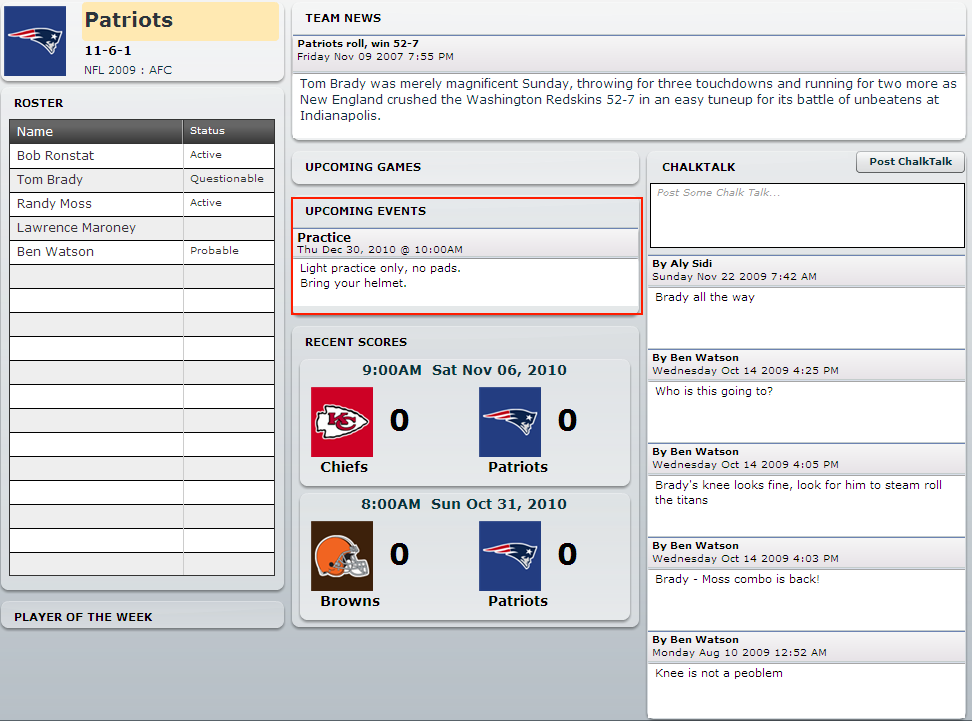
Team Admins can now add specific events for a team.
Specifically, you can add Practices, Exhibition Games, or general Team Meetings.
1. Login
2. Goto yourTeam page
3. Click Team Admin
4. Click Team Events
You should now see the screen below.
*A few things to note*
1. You should set your event date in the future, otherwise it won't show up
2. It will show only the most recent 3 events on the team page
3. You have the option of making the event public or private. By default all events are private which means you need to log into your team page to view them, If you don't want people to login, then make them public, but that means anyone who browses your team page can see them.
You can see the team events show up on your team page. Remember it will only show events that have a date greater than today and it will show the most recent 3 upcoming events.
We will be adding email notifications for team members shortly as a new feature.
PlayerStreak.com helps sports leagues, teams and players collaborate & communicate online. Everyone has a role to play, whether you are a fan, parent, team member, coach, or league administrator. PlayerStreak.com wants to build sports communities online that encourage participation by combining day to day sports management duties with a social network that keeps everyone informed.
Tuesday, December 21, 2010
Friday, February 19, 2010
Who's IN ? Who's OUT ?
With many amateur sports leagues, there is usually one or two people acting as a coach or the responsible person for the team. One of the most time consuming duties is figuring out who is going to be at the game to see whether it should be re-scheduled or cancelled, or knowing that you have to get spares to fill in.
Now, how do you track that people are coming to the game before the actual game starts? Welcome to Game Attendance Reminders
To get to the Game Attendance Reminders screen below
1. Login
2. Goto your Team page
3. Click on "Team Admin"
These are broken into 2 categories below :
Game Reminder : These are emails sent out 24 hrs before game time to make sure that you have not forgotten about the game. These are also for people, who never visit the site to check the schedule.
Game Attendance Reminder : These are emails sent out 48 hrs in advance and look like the image below
If you click the Count me IN / OUT link it will update your status on the web site automatically.
To see who has responded to the game attendance reminders, when you log in to your team site you will see a new hyperlink under Upcoming Games, like the image below.
And click the Game Attendance link will take you to the full list of players who are IN or OUT.
NOTE: You can also update your status on the screen below anytime.
In this example, you can see 2 players are IN and 2 players are out, and 1 has not responded yet.
Hopefully, this feature will make team management that much easier.
Now, how do you track that people are coming to the game before the actual game starts? Welcome to Game Attendance Reminders
To get to the Game Attendance Reminders screen below
1. Login
2. Goto your Team page
3. Click on "Team Admin"
Game Reminder : These are emails sent out 24 hrs before game time to make sure that you have not forgotten about the game. These are also for people, who never visit the site to check the schedule.
Game Attendance Reminder : These are emails sent out 48 hrs in advance and look like the image below
To see who has responded to the game attendance reminders, when you log in to your team site you will see a new hyperlink under Upcoming Games, like the image below.
NOTE: You can also update your status on the screen below anytime.
Hopefully, this feature will make team management that much easier.
Labels:
email reminder,
game attendance,
game reminder
Monday, December 7, 2009
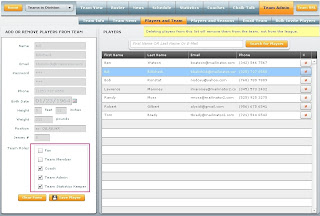
Manage Team Roles and Permissions
If you need to change a persons role, to say a Team Admin, or add them as a Team Statistics Keeper, then you can do so by going to :
Now the next time the person logs in, they will have their new permissions set up.
Check the screen shot below for more details
- Goto your Team Page
- Then click on "Team Admin"
- Then click on "Players and Team"
- Then select the person's name
- Then click the checkbox for TEAM STATISTICS KEEPER and TEAM ADMIN
- Then click Save.
Now the next time the person logs in, they will have their new permissions set up.
Check the screen shot below for more details

Wednesday, November 11, 2009
Email Your League
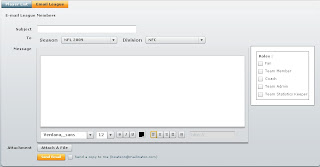
Sometimes you have the need to email certain members of your league to notify them about a particular event or reminder. We have added an email league option under :
League Administration > Players > Email League
You can now target emails to all Fans, Coaches, Team Admins, Team Statistic Keepers and Team Members or any combination.
Check the screenshot below to see it in action.
League Administration > Players > Email League
You can now target emails to all Fans, Coaches, Team Admins, Team Statistic Keepers and Team Members or any combination.
Check the screenshot below to see it in action.

Filter Your Player Lists and Copy to Excel
As your league grows with more and more players (fans, coaches, team admin, stats keepers), you need an easy way to find them. We have recently added a filter option to sort by roles. Have a look at the screenshot below.
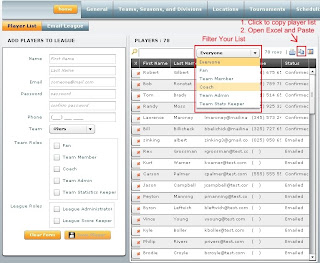
After you have filtered your list you can click the "Copy to Clipboard" icon, also in the screenshot above, then open Micrsoft Excel or Word or any other program and paste the filtered list into that program.

After you have filtered your list you can click the "Copy to Clipboard" icon, also in the screenshot above, then open Micrsoft Excel or Word or any other program and paste the filtered list into that program.
Monday, October 26, 2009
Thursday, October 15, 2009
Add / Minus Points in Standings Calculation
The standings are first sorted by the Points column. These points are dynamically calculated based on your League Scoring Options.
But sometimes you need to modify the Points because you want to either add or subtract points from a team in a given season.
This could be because of penalties against the team, or rewarding the team for their actions.
Now you can do this when you enter a score in for a game.
Notice the +/- Misc Points hyper link. Clicking on the link will take you to the next screenshot.
This screen lists all the miscellaneous points you have given to a team in the current season/division. It is advisable to provide a comment so you do not forget what why you gave the points.
Now when you go back to the Standings page, there should be an extra MP column (Miscellaneous Points). These points will be added to the total Points and the Standings will be sorted accordingly.
But sometimes you need to modify the Points because you want to either add or subtract points from a team in a given season.
This could be because of penalties against the team, or rewarding the team for their actions.
Now you can do this when you enter a score in for a game.
Notice the +/- Misc Points hyper link. Clicking on the link will take you to the next screenshot.
This screen lists all the miscellaneous points you have given to a team in the current season/division. It is advisable to provide a comment so you do not forget what why you gave the points.Now when you go back to the Standings page, there should be an extra MP column (Miscellaneous Points). These points will be added to the total Points and the Standings will be sorted accordingly.
Subscribe to:
Posts (Atom)