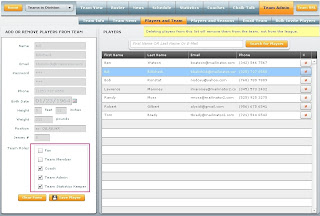
If you need to change a persons role, to say a Team Admin, or add them as a Team Statistics Keeper, then you can do so by going to :
- Goto your Team Page
- Then click on "Team Admin"
- Then click on "Players and Team"
- Then select the person's name
- Then click the checkbox for TEAM STATISTICS KEEPER and TEAM ADMIN
- Then click Save.
Now the next time the person logs in, they will have their new permissions set up.
Check the screen shot below for more details
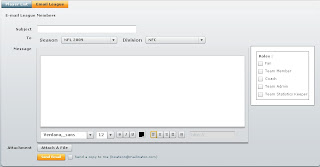
Sometimes you have the need to email certain members of your league to notify them about a particular event or reminder. We have added an email league option under :
League Administration > Players > Email League
You can now target emails to all Fans, Coaches, Team Admins, Team Statistic Keepers and Team Members or any combination.
Check the screenshot below to see it in action.
As your league grows with more and more players (fans, coaches, team admin, stats keepers), you need an easy way to find them. We have recently added a filter option to sort by roles. Have a look at the screenshot below.
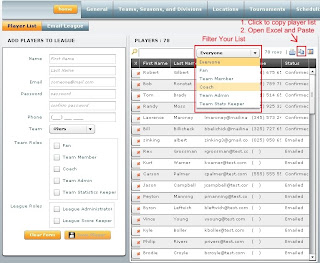 After you have filtered your list you can click the "Copy to Clipboard" icon, also in the screenshot above, then open Micrsoft Excel or Word or any other program and paste the filtered list into that program.
Ok, so you have just generated a bunch of schedules and you need to tweak it a bit. Maybe some games need to be moved to another day.
Or maybe you need to move a bunch of games to a new location. Or maybe you need to reschedule a block of games that could not be scheduled in the first place.
There are few options at your disposable to accomplish this.
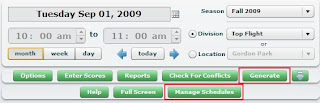 Whether you are in the Generate screen or the Manage Schedules screen (see above for a screenshot)
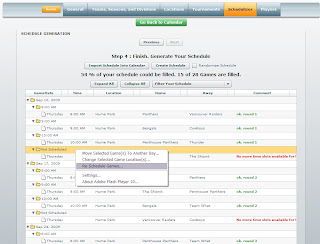 You will notice that you can "right click" on the grid, whether you are on a spefici day, or time slot, just right click and you will be presented with a menu.
Move Selected Games to Another Day
This option allows you to bulk move games to another day, while preserving the time slots
Change Selected Game Locations
This option allows you to bulk move games to another location.
Reschedule Games
This option will ask you to pick a new date or the same date, and a new location. If there is a conflict, it will not schedule the games. You can only use this option when you "Generate" games, because after you import them, it will only import games that could be scheduled.
You will notice that you can "right click" on the grid, whether you are on a spefici day, or time slot, just right click and you will be presented with a menu.
Move Selected Games to Another Day
This option allows you to bulk move games to another day, while preserving the time slots
Change Selected Game Locations
This option allows you to bulk move games to another location.
Reschedule Games
This option will ask you to pick a new date or the same date, and a new location. If there is a conflict, it will not schedule the games. You can only use this option when you "Generate" games, because after you import them, it will only import games that could be scheduled.
 These are broken into 2 categories below :
 If you click the Count me IN / OUT link it will update your status on the web site automatically.
 And click the Game Attendance link will take you to the full list of players who are IN or OUT.
  In this example, you can see 2 players are IN and 2 players are out, and 1 has not responded yet.


