 There is now an "OPTIONS" button in the Schedulizer screen which control your scheduling options. A recent addition allows you to pad the start and end minutes when adding a game to the calendar. By default the start and end minutes are on the hour (ex: 5:00 ) and the end minutes are on the half hour (ex: 5:30). you now have the option of padding the start and end times, by 5, 10, 15, 20 or 25 minutes.For example, if your games start at 2:15 and end at 3:45, then choose the 15 minutes from the drop list and try adding a new game.Your settings will be saved per league, so if you have multiple leagues, be sure to check your scheduling options.Look out for more options to come in the near future.
 You can now edit the Team Information such as : Team Name, Team Initials and Team Color from the League Admin screen.
Simply double click on an item in the list to edit. Then click the Save button to save your changes.
There is now the ability to add "League Score Keepers" role.You can enable this option by going to :
1. League Administration
2. Click the Players tab
3. Click on a person in the grid
4. On the bottom left hand side there will be a checkbox for League Score Keeper
5. Tick the checkbox and Save
(See screenshot below)
So now that you have assign one or more person to be a League Score Keeper, how do they enter scores?
Easy. When they login, they will now see a new link on the left hand side bar, called "Score Keeping". When you click on this link it will look like the screenshot below.
You can see that there is a grid and a calendar. The grid is used to enter scores and the calendar is used to navigate the months, week, or day you wish to enter scores for. The grid will automatically show the games that correspond to whatever timeframe view the calendar is in.
To update a score, simply enter the scores in the grid and then click the save icon in the right most column of the grid.
You should see the calendar refresh for the game you updated the score for.
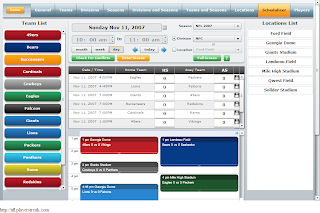
Oh and League Admins, The Schedulizer has this built in. Just look for the "Enter Scores" button and the functionality should be same above.
Check the screenshot below for the Schedulizer implementation.
The easiest way to add players to your team, is to use the Bulk Invite Players option. To get to this screen :
1. Login
2. Goto your team page
3. Click Team Admin
4. Click Bulk Invite Players
It allows you to enter a bunch of emails separated by a comma, and select the role you want for those team members. It will then mass email the players as well as add them to your team.
The players will then have to update their information, so their first name doesn't stay as their email address.
In the example below, we are creating 2 players as a :
COACH : So they will show up under the Coach tab with their contact information
TEAM ADMIN : So they can administer the team page and send out emails, update news, etc
TEAM STATS KEEPER : So they can enter scores online and update player statistics
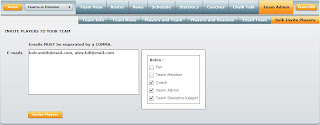 NOTE #1 : Don't worry if the email already exists in the system, it will simply add that player to the team and not create a new account.
NOTE #2 : If you assign the TEAM MEMBER role, you will still have to drag and drop those players to your current teams roster, so they will show up on the Team View tab.
Players and Teams now have dedicated URLs to their respective webpages, without having to log in first, then navigate to the page they want.
This is ideal for Search Engines, because now Google, Yahoo, etc can index your individual page, and you can even email it to all your friends, bookmark it or better yet, send it to scouts or recruiters.
To get your link for Player profiles check out the screenshot below and click on "Public Profile Link". It should open a new window and the url in the address bar should be something like http://nfl.playerstreak.com/?p=172 <-- That's TomBrady's profile page.  For direct team webpage links check out the the screenshot below. Click on the "Team URL" button and should open a window with a URL similar to : http://nfl.playerstreak.com?t=114 <-- That's the Patriots team home page.

 You can now export Schedules to Excel. Just look for the excel icon on the Schedule view screens. you can even filter the data by team before you export it.
Also, on all the team websites, you can export a team schedule as well.
The Schedulizer Grid has been replaced with a drag and drop Calendar. You have Full Screen Views, Month Views, Week Views, and Day Views. You can basically drag a calendar entry to any of the views, and you can even use the resize option to change the start and end times.Here's a little excerpt from the Help :
To Create A Game: 1. Click / Drag on the calendar to set the time duration. ex: 9:00am to 10:00am 2. Drag teams from the left hand side bar to the Home Team and Away Team boxes 3. Drag a location from the right hand side bar to the Location box 4. Set a date and time with at the top of the screen with the date and time controls 5. Click Save Game To Edit a Game: 1. Double click on a calender entry. 2. Follow steps in "To Create A Game" above from step 2. Score Keeping To enter the Score Keeping area, Double click on a calendar entry Click the "Scores and Stats" button to enter the score keeping screen 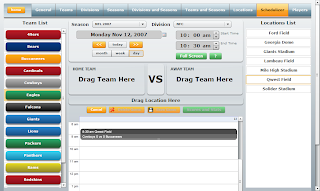
 There is now an "OPTIONS" button in the Schedulizer screen which control your scheduling options. A recent addition allows you to pad the start and end minutes when adding a game to the calendar. By default the start and end minutes are on the hour (ex: 5:00 ) and the end minutes are on the half hour (ex: 5:30). you now have the option of padding the start and end times, by 5, 10, 15, 20 or 25 minutes.


